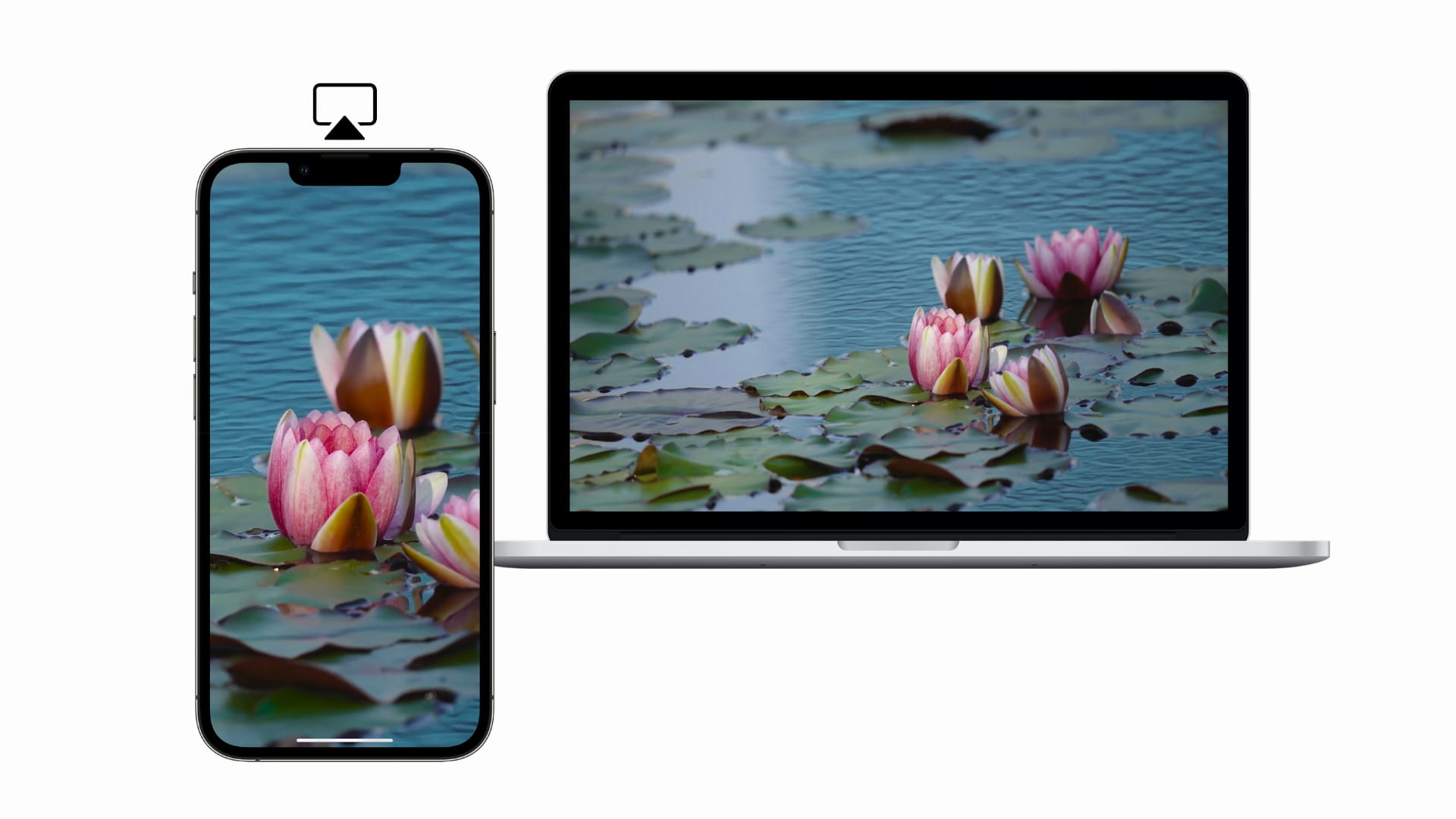
In this quick tutorial, we tell you about various ways to cast your iPhone or iPad screen to a computer monitor or television so you can see everything on a bigger canvas. Note: You can also connect a keyboard and mouse/trackpad to your iPhone or iPad to control the screen when casting to the big display. AirPlay If you have a television (like this LG TV ) or a monitor (like this Samsung monitor ) with built-in AirPlay support, then follow these easy steps to cast your iPhone or iPad screen to it. 1) Power on your monitor or television. Go to their AirPlay settings if something like that is available. On some Android TVs, you may need to download a third-party app to use AirPlay. 2) Make sure Bluetooth and Wi-Fi are enabled on your iPhone or iPad. Then, open iOS Control Center and tap the Screen Mirroring icon. Wait for your monitor or television to appear here, then tap it. 3) You should see your iPhone or iPad screen on the bigger screen.…