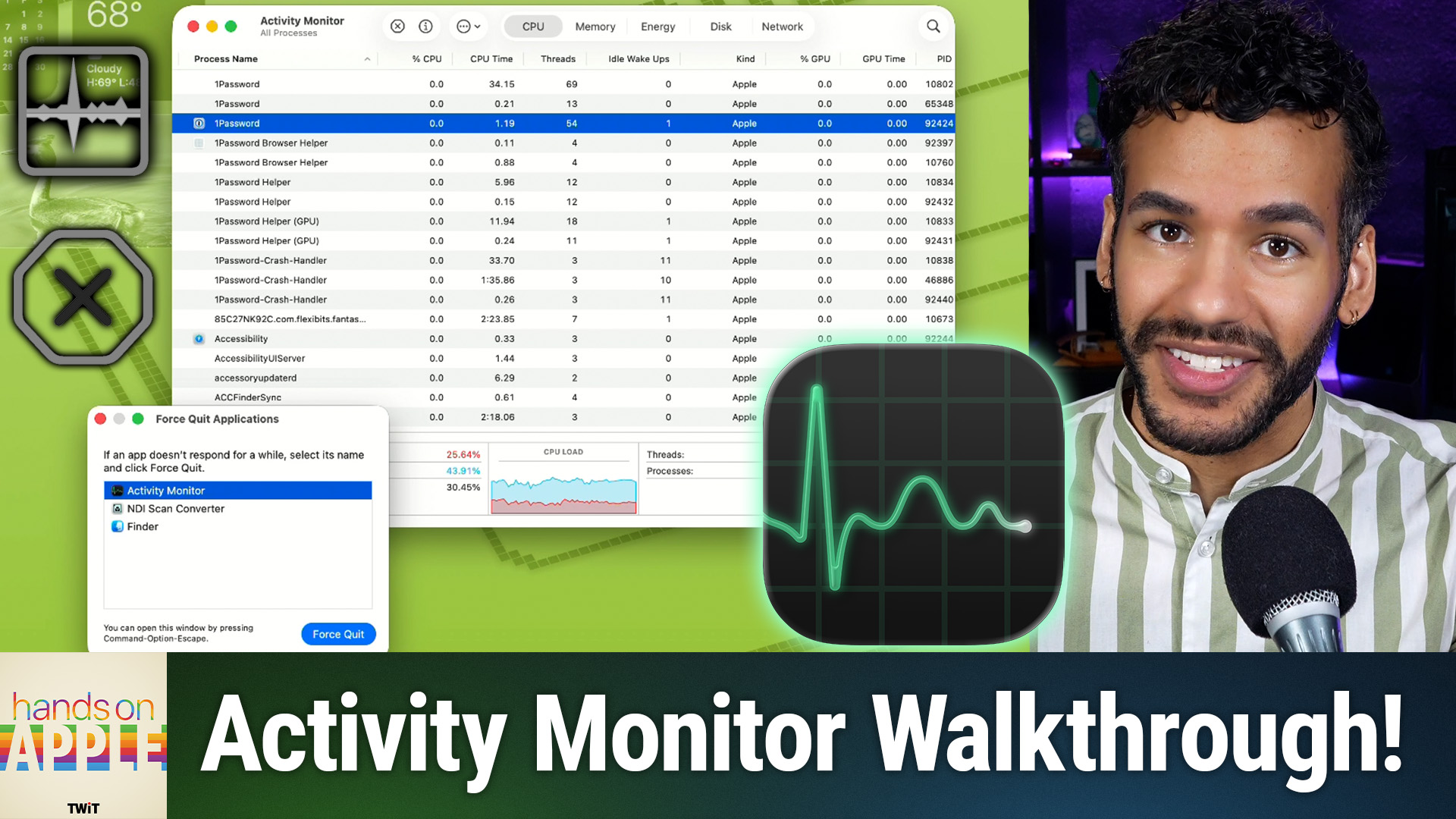
Learn why Activity Monitor is the macOS tool experienced users trust first to diagnose hidden memory drains, runaway CPU usage, and behind-the-scenes energy hogs. Mastering a single built-in tool can put real-time answers and expert-level control right at your fingertips. Quick Access Methods: Spotlight, Finder, and Utilities Folder Five Main Tabs: CPU, Memory, Energy, Disk, and Network Explained Sorting and Identifying Resource-Heavy Processes in CPU Tab Understanding Percent CPU, Multi-Core Macs, and High Usage Scenarios Spotting and Managing Frozen or Runaway Apps via Activity Monitor The Importance of the Kind Column: Rosetta Support and Apple Silicon Transition Using Memory Tab and Pressure Graph to Gauge RAM Health Sorting by Memory to Find Leaky or Misbehaving Apps Energy Tab Insights: Finding Battery-Draining and Power-Hungry Apps Disk Tab: Diagnosing Read/Write Issues and Competing Background Tasks Network Tab: Tracking Data-Heavy Apps and Monitoring for Security Live Dock Icon Graphs for CPU,…