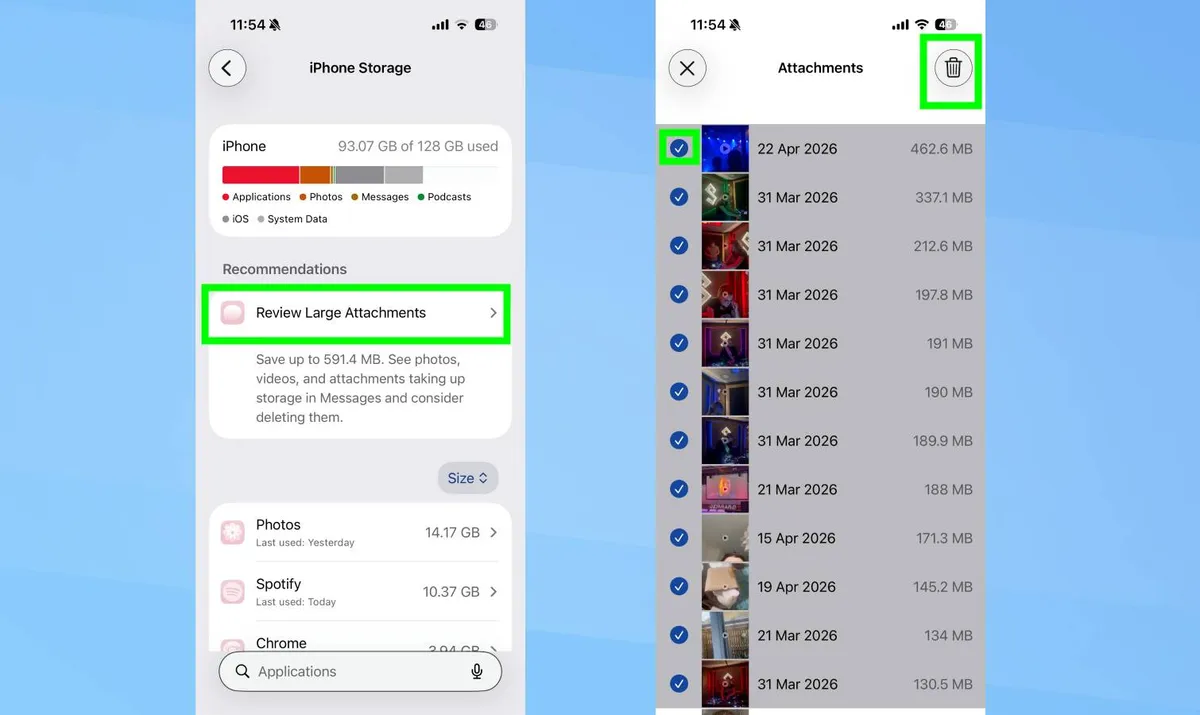
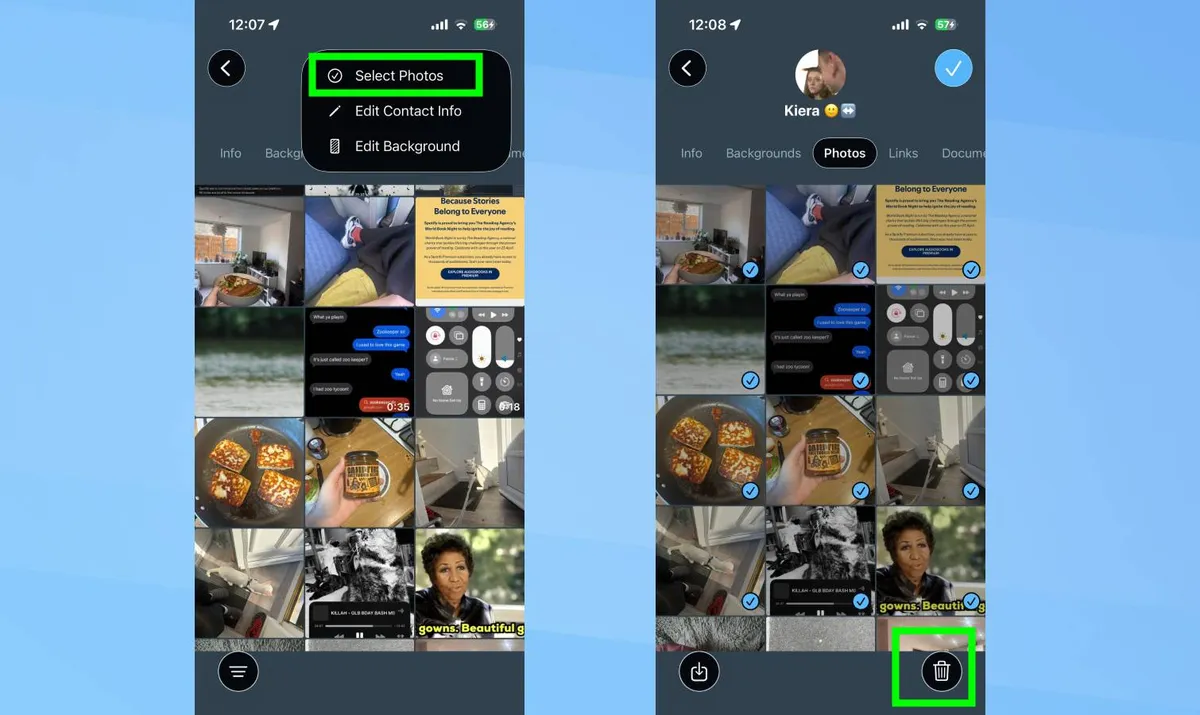
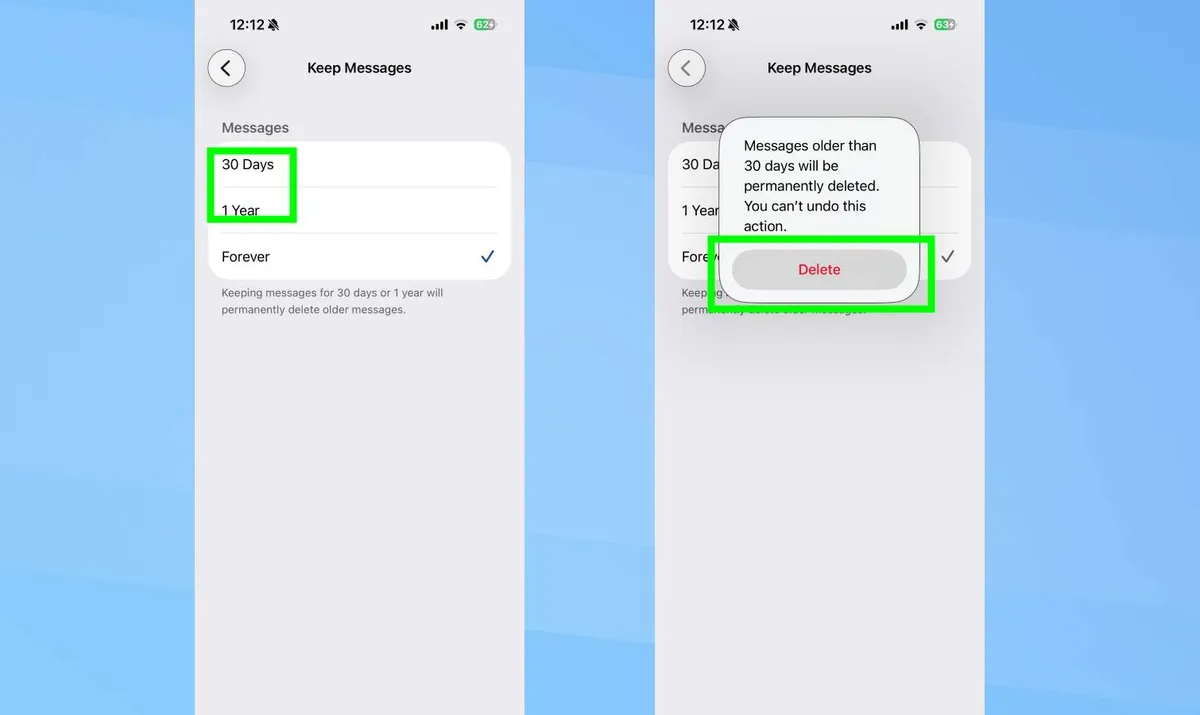
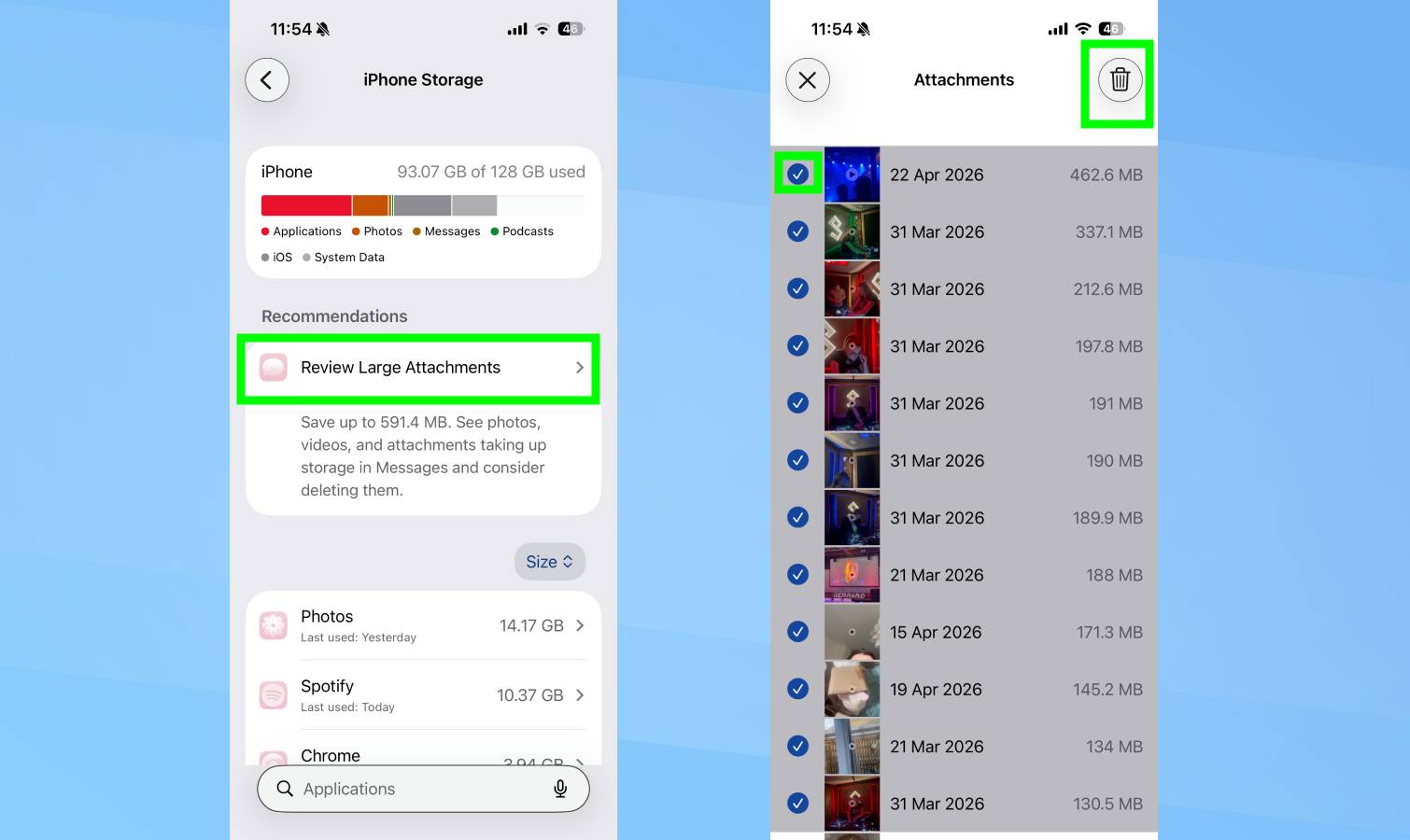
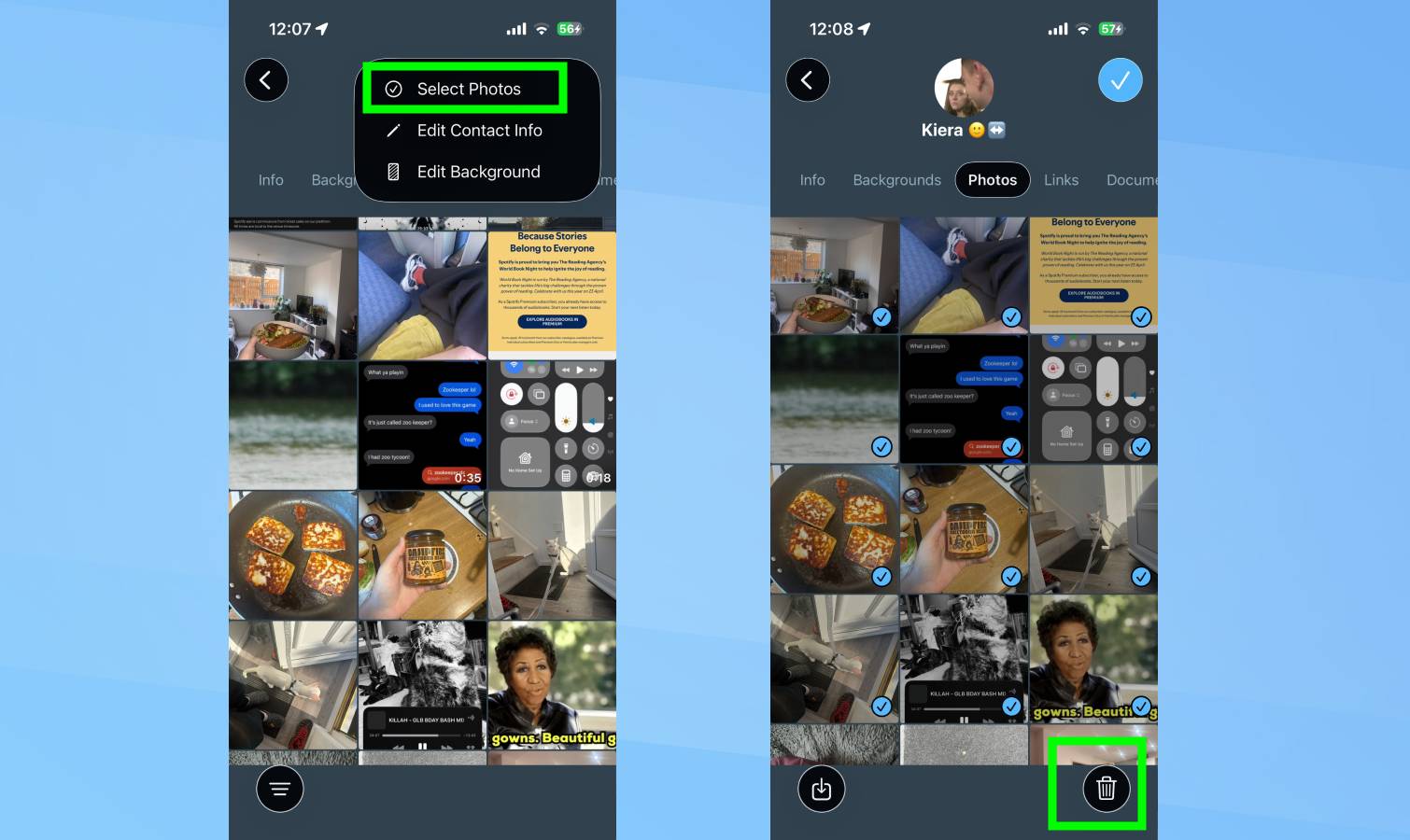
(Image credit: Shutterstock) iPhone storage fills up fast. Photos, apps, videos, and downloads all compete for space, but one storage hog flies under the radar: text message attachments. Every photo, video, GIF, and file sent through Messages gets saved to your phone automatically, even if you never intended to keep it. Group chats with hundreds of photos, funny videos forwarded months ago, duplicate screenshots — all of it sits in Messages consuming storage you didn't realize was being used. Most people overlook message attachments since they aren’t visible like photos, but they can take up gigabytes of storage. Here’s how to find and delete them. Article continues below 1. Review and delete large attachments The iPhone automatically flags large attachments taking up significant storage and makes them easy to delete without removing your actual text conversations. Go to Settings, General, iPhone Storage .…